 User Guide
Insert buttons
Press the button in the Formatting toolbar to reveal special inserable items and blocks such as symbols, Math expressions and separators.
Bookmarks#
See the dedicated Anchors section.
Emoji#
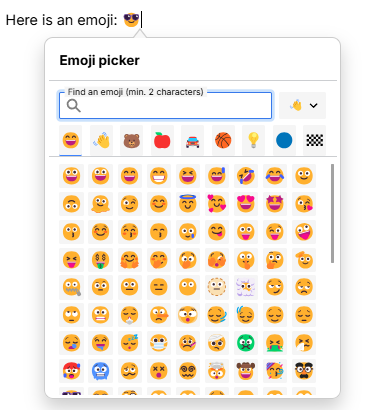
This feature allows inserting Unicode emoji characters. Simply select a category and a desired emoji to insert it.
Emojis can also be searched by their English name and the skin tone can be selected via a combo box to the right.
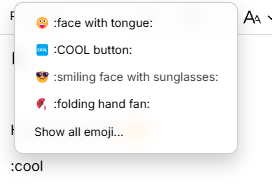
There is also the possibility of inserting emojis directly by typing : followed by a name of an emoji, triggering the display of a list of emojis. Simply use the arrow keys to select one and press Enter to insert it.
Symbols#

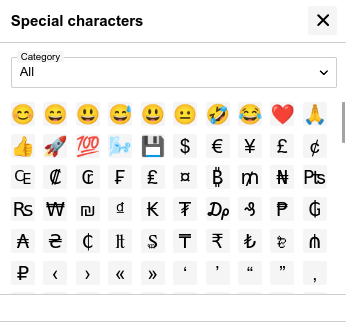
Pressing the button will reveal a popup window displaying a list of characters that are generally more difficult to insert directly from the keyboard, such as a subset of emojis, quotation characters, etc.
Interaction:
- Click on a character to insert it at the current cursor position.
- The window can be dragged around by the top bar where the title is, to avoid it getting in the way of the text.
- Click on the Category selector to filter the characters.
Math equations#
See the dedicated Math Equations page.
Mermaid diagram#
Press the button to create an inline Mermaid diagram.
This feature is quite similar to the Mermaid Diagrams note types and is meant as an alternative to it for simple diagrams. For more complex diagrams, use the Include Note feature for a dedicated Mermaid note.

Horizontal ruler#
This feature will display a horizontal line, generally useful to separate different sections of the text. To do so, press the button in the Formatting toolbar.
Alternatively, it's possible to insert a horizontal ruler by typing ---.
Page break#

Page breaks provide a way to force the next paragraph or block (table, image, etc.) to be displayed onto the next page when printing (either to a real printer to when exporting to PDF).
Page breaks are marked in the editor with the words Page break, but they will not actually be shown when printed.
- To insert a page break, press the in the formatting toolbar.
- To insert many page breaks at once, insert a page break first, click on it and press Ctrl+C. Then use Ctrl+V, to paste as many times as needed.
Date and time#
The button inserts the current date and time at the cursor, replacing the selected text if there is any. The inserted text takes the formatting of the text around it, so a date inserted inside bold text is bold too.
- To insert the date in the default format, press the button itself or press Alt+T.
- To insert it in another format, press the arrow next to the button and pick a format from the list. Each entry shows the current date and time in that format: the default one, the date or the time alone, the date written out, and ISO 8601.
- The same formats are offered by the Slash Commands: type
/date,/time,/nowor/today. The Insert date/time entry uses the default format, and shows what it inserts underneath; the other entries show their output in the title.
The default format can be changed in Options → Text Notes → Editor → Date/time format, using Day.js format tokens (for example DD.MM.YYYY HH:mm).
Icons#
Icons just like the ones for the note icon can be inserted in text. For more information see Icons.