 User Guide
Split View
In Trilium, is possible to work with two or more notes side-by-side.
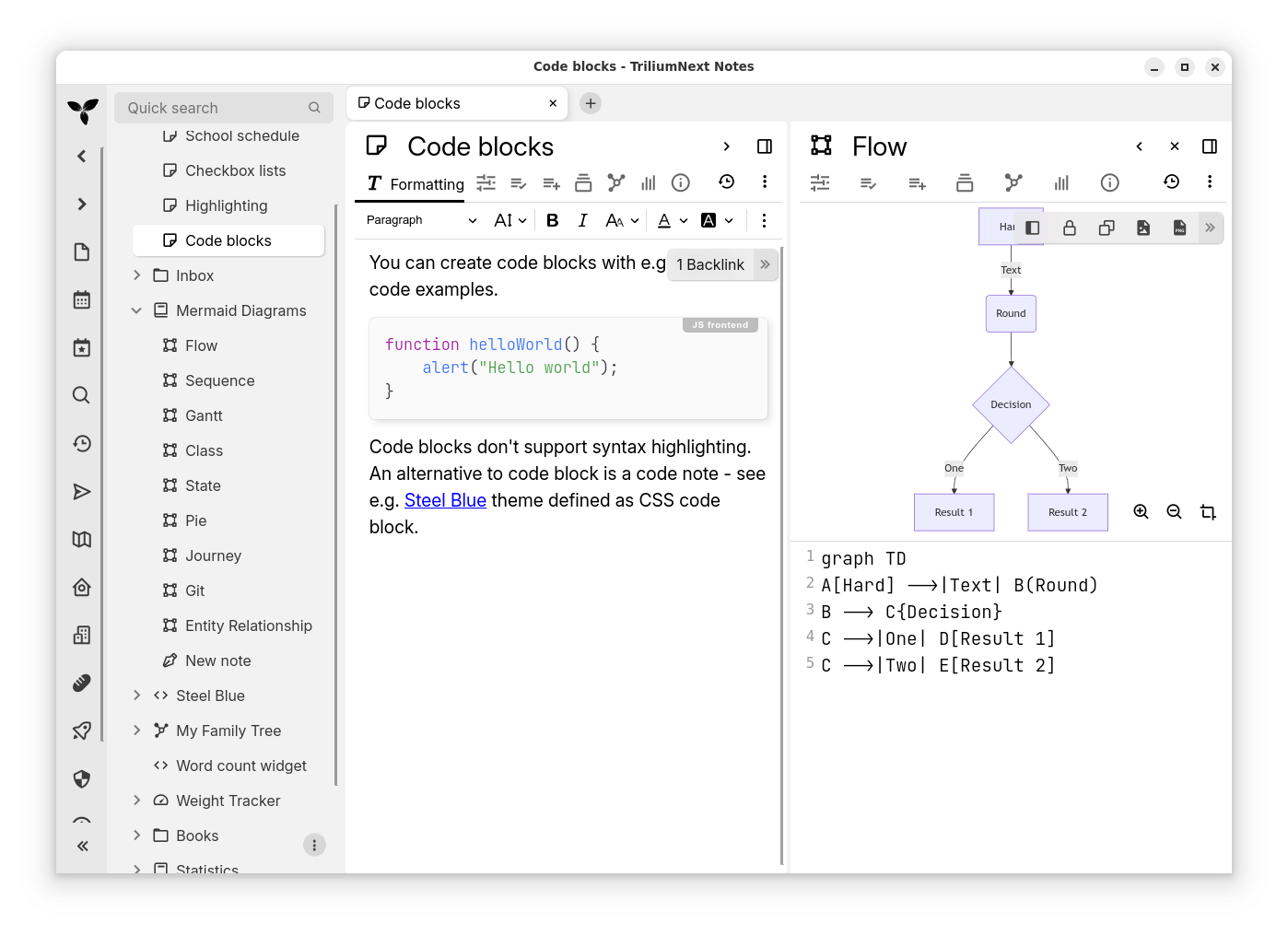
Interactions#
- Press the button to the right of a note's title to open a new split to the right of it.
- It is possible to have as many splits as desired, simply press again the button.
- Only horizontal splits are possible, vertical or drag & dropping is not supported.
- When at least one split is open, press the button next to it to close it.
- Use the or the button to move around the splits.
- Creating, closing and moving a split can also be triggered from a keyboard shortcut (Create New Split, Close Active Split, Move Split Left and Move Split Right, all unassigned by default) or through the command palette.
- The focus can be moved from one split to the one next to it with the Focus Split to the Left and Focus Split to the Right actions, which stop at either end of the tab instead of continuing into the next tab. They are unassigned by default as well.
- Each tab has its own split view configuration (e.g. one tab can have two notes in a split view, whereas the others are one-note views).
- The tab's title will indicate all the note titles, in the order of the splits from the left to right and separated by a bullet symbol.
- The tab's icon will indicate the icon of the last active split, which will be automatically focused when clicking on the tab.
Splits and the note tree & hoisting#
Clicking on the content of a split will focus that split. While focused, the Note Tree will also indicate the note that is being edited.
It is possible for each of the splits to have their own Note Hoisting.
When a new split is created, it will share the same note hoisting as the previous one. An easy solution to this is to simply hoist the notes after the split is created.
This is generally quite useful for reorganizing notes from one place to the other, by hoisting the old place in the first split and hoisting the new place to the second one. This will allow easy cut and paste without the tree jumping around from switching between notes.
Mobile support#
Since v0.100.0, it's possible to have a split view on the mobile view as well, with the following differences from the desktop version of the split:
- On smartphones, the split views are laid out vertically (one on the top and one on the bottom), instead of horizontally as on the desktop.
- There can be only one split open per tab.
- It's not possible to resize the two split panes.
- When the keyboard is opened, the active note will be “maximized”, thus allowing for more space even when a split is open. When the keyboard is closed, the splits become equal in size again.
Interaction:
- To create a new split, click the three dots button on the right of the note title and select Create new split.
- This option will only be available if there is no split already open in the current tab.
- To close a split, click the three dots button on the right of the note title and select Close this pane.
- Note that this option will only be available on the second note in the split (the one at the bottom on smartphones, the one on the right on tablets).
- When long-pressing a link, a contextual menu will show up with an option to Open note in a new split.
- If there's already a split, the option will replace the existing split instead.