 User Guide
Note Tree
This page explains how to manipulate the note tree in TriliumNext, focusing on moving notes.
Drag and Drop#
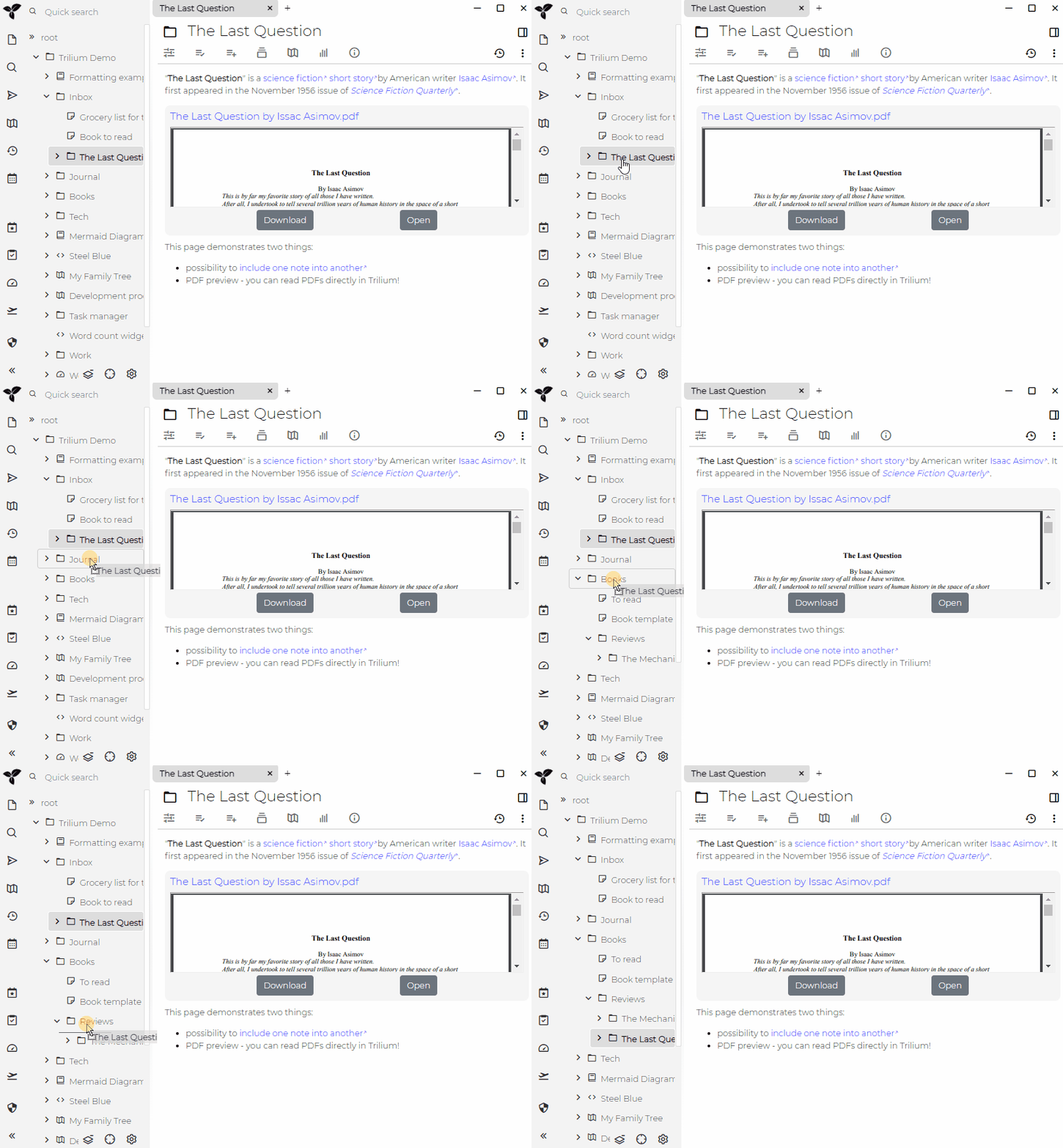
You can easily rearrange the note tree by dragging and dropping notes, as demonstrated in the example above.
Importing files#
A file or archive can easily be imported into Trilium just by dragging it inside the note tree.
Note that a drag & drop always imports with safe import on, meaning that some features such as scripts are disabled in the upcoming notes. To bypass that, use the dedicated import feature (right click → Import into note).
Unlike the import dialog, the drag & drop also has some basic auto-detection of the import. For example, dragging a .zip file with a .obsidian folder in it will automatically trigger a dedicated Obsidian import.
Keyboard Manipulation#
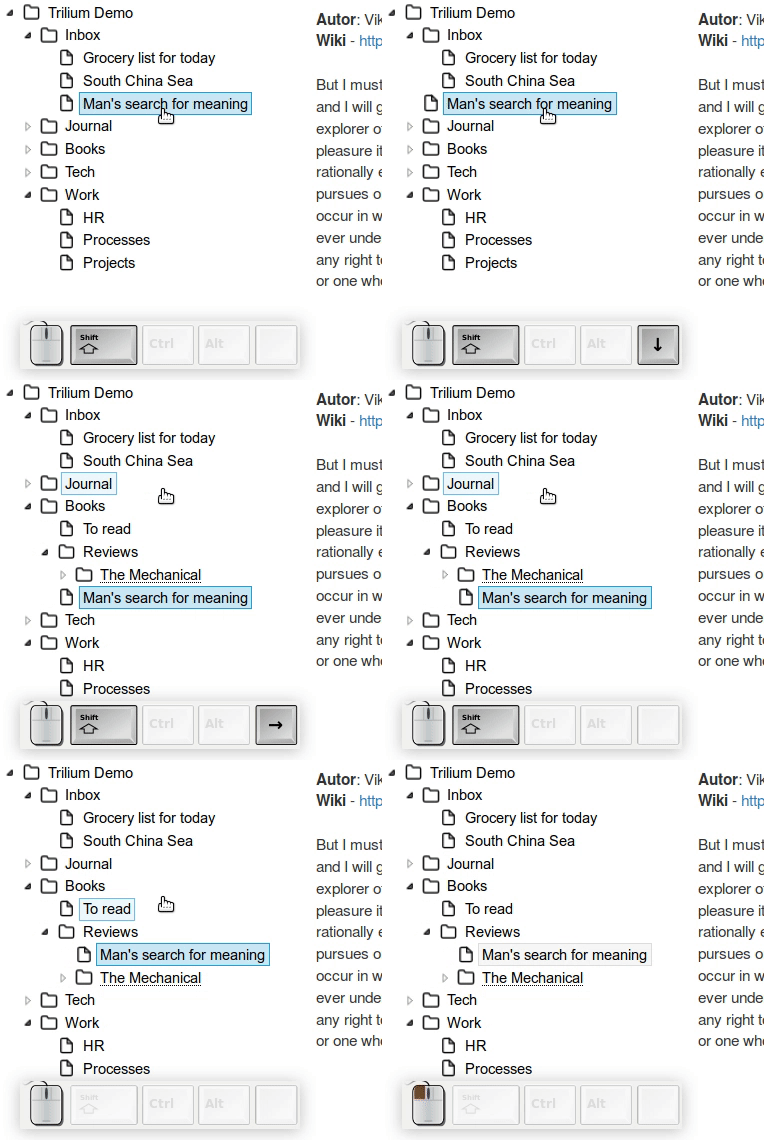 Trilium offers efficient keyboard-based manipulation using the following shortcuts:
- Ctrl + ↑ and Ctrl +↓: Move the note up or down in the order.
- Ctrl+←: Move the note up in the hierarchy by changing its parent to the note's grandparent.
- Ctrl+→: Move the note down in the hierarchy by setting its parent to the note currently above it (this action is best understood through a demo or hands-on experience).
- ← and →: Expand and collapse a sub-tree.
Context Menu#
You can also move notes using the familiar cut and paste functions available in the context menu, or with the associated keyboard shortcuts: CTRL-C ( copy), Ctrl + X (cut) and Ctrl + V (paste).
See Note tree contextual menu for more information.
Tree Settings#
Click the tree icon in the tree toolbar to open the tree settings popup. It contains the following options:
- Hide archived notes: When enabled, archived notes are not shown in the tree.
- Automatically collapse notes: When enabled, notes are collapsed after a period of inactivity to keep the tree tidy.
- Follow active note: When enabled (default), the tree automatically scrolls and expands parent nodes to keep the currently active note visible. When disabled, the tree is fully detached from navigation — only the background highlight of the active note is updated, but the tree viewport and its expanded/collapsed state are never changed by navigation. Use the crosshair button to manually jump the tree to the active note at any time.
Keyboard shortcuts#
The note tree comes with multiple keyboard shortcuts to make editing faster, consult the dedicated Keyboard shortcuts section.