 User Guide
Search
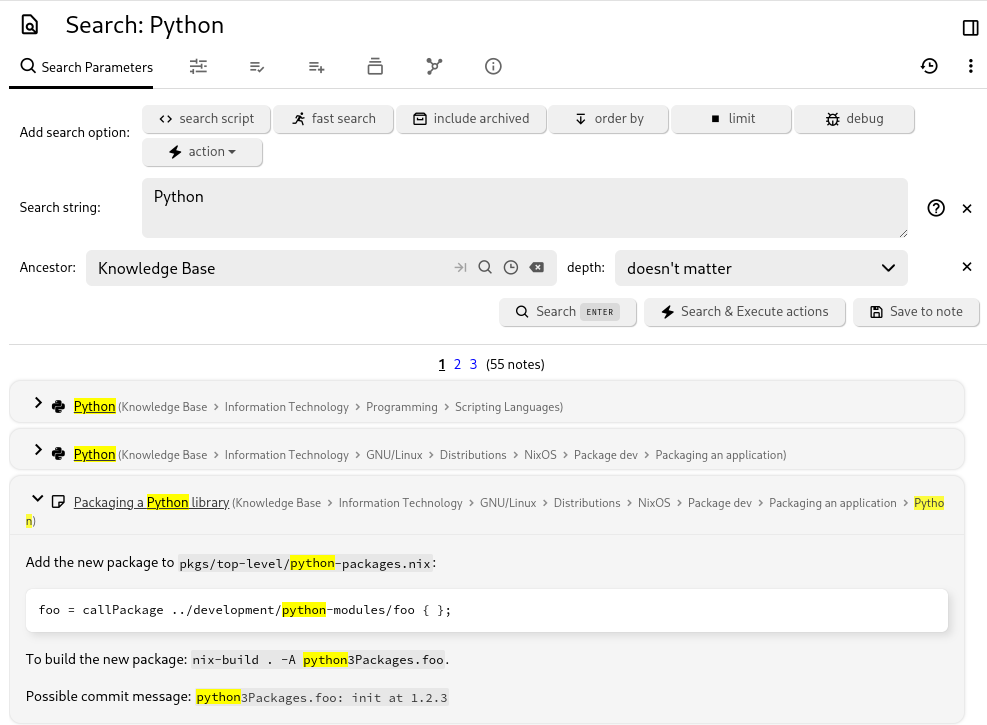
Note search enables you to find notes by searching for text in the title, content, or attributes of the notes. You also have the option to save your searches, which will create a special search note which is visible on your navigation tree and contains the search results as sub-items.
Types of search#
There are multiple types of searches, all using the same search mechanism and query language:
Quick search which can be found in the Launch Bar for small one-off searches.
- The results are shown in a popup and it has an infinite scroll.
Full search is the more advanced search mechanism.
- The results are displayed in a separate page and it has multiple advanced features (search script, fast search, include archived notes, order by, limit).
- Bulk Actions such as adding a label/relation can be applied to the results.
- The results are paginated and they can be displayed in any Collections view (e.g. grid, list, calendar, table).
Some Collections such as board view have a dedicated search bar which applies to that collection.
- In this case, the results are displayed directly in the collection instead of a popup and they are limited to the collection but the query language remains the same.
Accessing the search#
- From the Launch Bar, look for the dedicated search button.
- To limit the search to a note and its children, select Search from subtree from the Note tree contextual menu or press Ctrl+Shift+S.
- Go to Jump to & command palette, look for something then press Search in full text (or Ctrl+Enter).
Interaction#
To search for notes, click on the magnifying glass icon on the toolbar or press the keyboard shortcut.
- Set the text to search for in the Search string field.
- Apart from searching for words literally, there is also the possibility to search for attributes or properties of notes.
- See the examples below for more information.
- To limit the search to a note and its sub-children, set a note in Ancestor.
- This value is also pre-filled if the search is triggered from a hoisted note or a workspace.
- To search the entire database, keep the value empty.
- To limit the search to only a few levels of hierarchy (e.g. look in sub-children but not in sub-sub-children of a note), set the depth field to one of the provided values.
- In addition to that, the search can be configured via the Add search options buttons, as described in the follow-up section.
- Press Search to trigger the search. The results are displayed below the search configuration pane.
- The Search & Execute actions button is only relevant if at least one action has been added (as described in the section below).
- The Save to note will create a new note with the search configuration. For more information, see Saved Search.
Features#
Autocomplete#
To help with the syntax, Trilium offers an autocomplete functionality which can be triggered by pressing Ctrl+Space.
The autocomplete offers:
Basic operators such as
*=and keywords (limit,not).Fields for object-like fields such as
noteor~relation, triggered by typing..Contextual enumerations such as
note.type = "ornote.mime = ".Label names by typing
#, with user-defined ones shown first.- A gear icon indicates system attributes.
- After typing the label name, the value is also autocompleted with values that are present in the database.
Relation names by typing
~.Note IDs can be inserted easily by typing
@and looking for a note.- If the note ID is under a valid syntax, it will be shown as a chip of the note instead of the raw ID.
- This is especially useful for queries that make use of the note ID such as searching by template:
~template.noteId = @
Syntax highlighting#
The search input features syntax highlighting, making recognized fields such as note. and operators like NOT stand out.
Error highlighting & linting#
The search is also checked for errors in two phases, which will be displayed as a red squiggle:
- Linter errors which identify common error patterns and also provide a way to fix them.
- Search errors which are checked by the server, without indicating the exact place the error occurred.
Multiline#
Long or complicated searches can be formatted by using newlines, similar to SQL queries. Newlines are treated just like spaces.
To add a new line, press Shift+Enter.
Search options#
Click on which search option to apply from the Add search option section.
- For each search option selected, the search configuration will update to reveal the entry. Each search option will have its own configuration.
- To remove a search option, simply press the X button to the right of it.
The options available are:
- Search script
- This feature allows writing a Code note that will handle the search on its own.
- Fast search
- The search will not look into the content of the notes, but it will still look into note titles and attributes, relations (based on the search query).
- This method can speed up the search considerably for large databases.
- Include archived
- Archived Notes will also be included in the results, whereas otherwise they would be ignored.
- Order by
- Allows changing the criteria for ordering the results, for example to order by creation date or alphabetically instead of by relevancy (default).
- It's also possible to change the order (ascending or descending) of the results.
- Limit
- Limits the results to a given maximum.
- This can help if the number of results would otherwise be high, at the cost of not being able to view all the results.
- Debug
- This will print additional information in the server log (see Error logs), regarding how the search expression was parsed.
- This function is especially useful after understanding the search functionality in detail, in order to determine why a complex search query is not working as expected.
- Action
- Apart from just searching, it is also possible to apply actions such as to add a label or a relation to the notes that have been matched by the search.
- Unlike other search configurations, here it's possible to apply the same action multiple times (i.e. in order to be able to apply multiple labels to notes).
- The actions given are the same as the ones in Bulk Actions, which is an alternative for operating directly with notes within the Note Tree.
- After defining the actions, first press Search to check the matched notes and then press Search & Execute actions to trigger the actions.
Viewing search results#
Results appear below the search pane as a list of snippet cards. Each card shows the note title and a short excerpt of the text that matched.
The search will also highlight the words from the title or content that matched:
- With a solid underlined green for a direct match;
- With a dotted underline orange for a partial match (matched by the fuzzy search).
In addition:
- The total number of results is always shown, so you can immediately tell how broad a query is.
- A page-size selector lets you choose how many results to display per page. Your choice is remembered and synced across your devices (stored in the
searchResultsPageSizeoption), so you do not have to reset it on every device. - Clicking a result opens the note and jumps straight to the first match. The in-note find bar opens pre-filled with your search terms, so you can step through the remaining matches with the find controls.
- If a match is inside a collapsed section (for example a folded heading), that section is expanded automatically so the match is visible.
Simple Note Search Examples#
rings tolkien: Full-text search to find notes containing both "rings" and "tolkien"."The Lord of the Rings" Tolkien: Full-text search where "The Lord of the Rings" must match exactly.note.content *=* rings OR note.content *=* tolkien: Find notes containing "rings" or "tolkien" in their content.towers #book: Combine full-text and attribute search to find notes containing "towers" and having the "book" label.towers #book or #author: Search for notes containing "towers" and having either the "book" or "author" label.towers #!book: Search for notes containing "towers" and not having the "book" label.#book #publicationYear = 1954: Find notes with the "book" label and "publicationYear" set to 1954.#genre *=* fan: Find notes with the "genre" label containing the substring "fan". Additional operators include*=*for "contains",=*for "starts with",*=for "ends with", and!=for "is not equal to".#book #publicationYear >= 1950 #publicationYear < 1960: Use numeric operators to find all books published in the 1950s.#dateNote >= TODAY-30: Find notes with the "dateNote" label within the last 30 days. Supported date values include NOW +- seconds, TODAY +- days, MONTH +- months, YEAR +- years.~author.title *=* Tolkien: Find notes related to an author whose title contains "Tolkien".#publicationYear %= '19[0-9]{2}': Use the '%=' operator to match a regular expression (regex). This feature has been available since Trilium 0.52.note.content %= '\\d{2}:\\d{2} (PM|AM)': Find notes that mention a time. Backslashes in a regex must be escaped.
Advanced Use Cases#
~author.relations.son.title = 'Christopher Tolkien': Search for notes with an "author" relation to a note that has a "son" relation to "Christopher Tolkien". This can be modeled with the following note structure:- Books
- Lord of the Rings
- label: “book”
- relation: “author” points to “J. R. R. Tolkien” note
- Lord of the Rings
- People
- J. R. R. Tolkien
- relation: “son” points to "Christopher Tolkien" note
- Christopher Tolkien
- J. R. R. Tolkien
- Books
~author.title *= Tolkien OR (#publicationDate >= 1954 AND #publicationDate <= 1960): Use boolean expressions and parentheses to group expressions. Note that expressions starting with a parenthesis need an "expression separator sign" (# or ~) prepended.note.parents.title = 'Books': Find notes with a parent named "Books".note.parents.parents.title = 'Books': Find notes with a grandparent named "Books".note.ancestors.title = 'Books': Find notes with an ancestor named "Books".note.children.title = 'sub-note': Find notes with a child named "sub-note".
See also Under the hood for more syntax references.
Search with Note Properties#
Notes have properties that can be used in searches, such as noteId, dateModified, dateCreated, isProtected, type, title, text, content, rawContent, ownedLabelCount, labelCount, ownedRelationCount, relationCount, ownedRelationCountIncludingLinks, relationCountIncludingLinks, ownedAttributeCount, attributeCount, targetRelationCount, targetRelationCountIncludingLinks, parentCount, childrenCount, isArchived, contentSize, noteSize, and revisionCount.
These properties can be accessed via the note. prefix, e.g., note.type = code AND note.mime = 'application/json'.
Order by and Limit#
#author=Tolkien orderBy #publicationDate desc, note.title limit 10This example will:
- Find notes with the author label "Tolkien".
- Order the results by
publicationDatein descending order. - Use
note.titleas a secondary ordering if publication dates are equal. - Limit the results to the first 10 notes.
Negation#
Some queries can only be expressed with negation:
#book AND not(note.ancestors.title = 'Tolkien')This query finds all book notes not in the "Tolkien" subtree.
Under the Hood#
See the dedicated page to understand how progressive search works in Trilium, as well as some advanced use cases.
Auto-Trigger Search from URL#
You can open Trilium and automatically trigger a search by including the search url encoded string in the URL:
http://localhost:8080/#?searchString=abc
Search Configuration#
Parameters#
| Parameter | Value | Description |
|---|---|---|
MIN_FUZZY_TOKEN_LENGTH | 3 | Minimum characters the ~= and ~* operators accept |
MAX_EDIT_DISTANCE | 2 | Ceiling on character changes, reached only by 7+ character terms; shorter terms allow fewer. See the Fuzzy tolerance section above |
RESULT_SUFFICIENCY_THRESHOLD | 5 | Minimum exact results before fuzzy fallback |
MAX_CONTENT_SIZE | 10MB | Maximum note content size for search processing |
Limits#
- Searched note content is limited to 10MB per note to prevent performance issues
- Notes exceeding this limit will still be included in title and attribute searches
- Terms of 3 characters or fewer are matched exactly; typo tolerance starts at 4 characters