 User Guide
Code
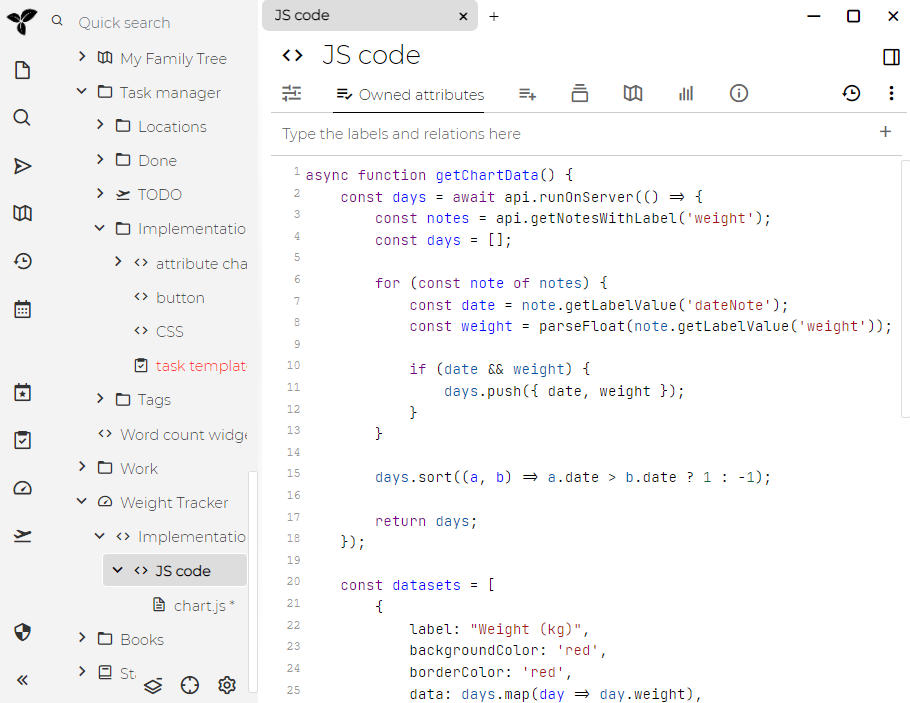
Trilium supports creating "code" notes, i.e. notes which contain some sort of formal code - be it programming language (C++, JavaScript), structured data (JSON, XML) or other types of codes (CSS etc.).
This can be useful for a few things:
- computer programmers can store code snippets as notes with syntax highlighting
- JavaScript code notes can be executed inside Trilium for some extra functionality
- we call such JavaScript code notes "scripts" – see Scripting
- JSON, XML etc. can be used as storage for structured data (typically used in conjunction with scripting)
For shorter snippets of code that can be embedded in Text notes, see Code blocks.
Adjusting the language of a code note#
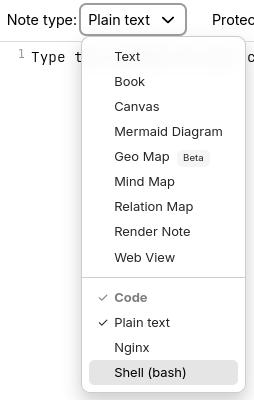
In the Ribbon, look for the Note type selector and click it to reveal the possible note types. Inside of it there will be a section called Code, select any one of the languages.
Adjusting the list of languages#
Trilium supports syntax highlighting for many languages, but by default displays only some of them. The supported languages can be adjusted by going to Options, then Code Notes and looking for the Available MIME types in the dropdown section. Simply check any of the items to add them to the list, or un-check them to remove them from the list.
Note that the list of languages is not immediately refreshed, you'd have to manually refresh the application.
The list of languages is also shared with the Code blocks feature of Text notes.
Word wrap#
Long lines can be displayed on multiple lines:
- Globally for all code notes, from Options → Code Notes.
- For a particular note, by going to the menu in Note buttons and selecting Word wrap and selecting the appropriate option:
- Auto, to respect the global word wrap for code notes.
- On or Off, to change the state of the word wrap for this note regardless of the global option.
Adjusting options using the status bar#
The status bar at the bottom of the editor shows the current indentation settings and language. Clicking on the indentation indicator opens a menu with three sections:
- Indent Using — switch between Spaces and Tabs (
#indentWithTabs). If a per-note override is active, a "Reset to default" option appears. - Display Width — choose from preset widths (1, 2, 3, 4, 6, 8). Changes are saved as a per-note
#tabWidthlabel. - Re-indent Content To — convert existing indentation to a different style. For example, re-indent a file from 4 spaces to 2 spaces, or from spaces to tabs. This rewrites the leading whitespace on every line while preserving alignment remainders.
Clicking the language indicator lets you change the note's MIME type.
Re-indentation#
When you re-indent content, the editor:
- Measures the visual column width of each line's leading whitespace using the current style
- Calculates indent levels and any alignment remainder
- Rebuilds the leading whitespace in the target style
- Preserves non-leading whitespace, blank lines, and content without indentation
Color schemes#
Since Trilium 0.94.0 the colors of code notes can be customized by going Options → Code Notes and looking for the Appearance section.
Programming ligatures#
If you see != displayed as ≠ or -> as → inside a code note, those are font ligature: the default monospace font draws certain character pairs as a single symbol. The underlying text is not changed by Trilium (unlike text notes which have Automatic replacements), and copying it out gives you back != and ->.
This can be turned off with Options→ Appearance → Fonts → Programming ligatures.
Virtual keyboard behavior#
When using a virtual keyboard, keyboard suggestions and corrections are controlled as follows:
- For Markdown and plain text code notes, the autocorrect is on, as well as automatic capitalization.
- For all the other code notes, the autocorrect is off in order to avoid issues when typing code.