 User Guide
Icon Packs
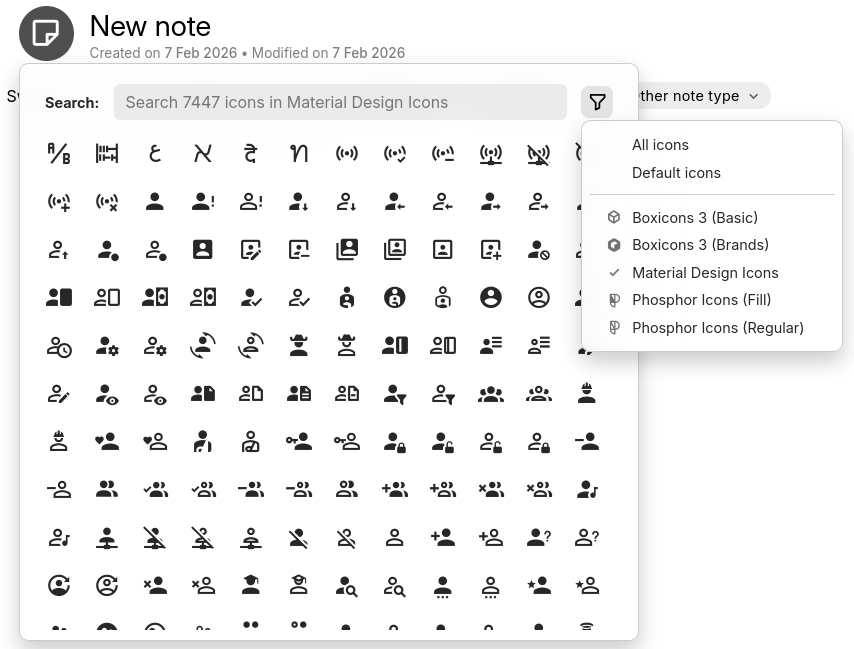
By default, Trilium comes with a set of icons called Boxicons v2. Since v0.102.0, custom icon packs allow a wider selection of icons for notes.
Icon packs are specific to Trilium, so they must either be created from scratch (see below) or imported from a ZIP file from a third-party developer.
Sample icon packs#
The Trilium team maintains a few icon packs that are not shipped with Trilium. These icon packs can be found on the official website on the Resources page.
Importing an existing icon pack#
To import an icon pack:
- Ideally, create a dedicated spot in your note tree where to place the icon packs.
- Right click the note where to put it and select Import into note.
- Uncheck Safe import.
- Select Import.
- Refresh the application.
Creating an icon pack#
Creating an icon pack requires some scripting knowledge outside Trilium in order to generate the list of icons. For information, see Creating an icon pack.
Using an icon from an icon pack#
After refreshing the application, the icon pack should be enabled by default. To test this, simply select an existing note or create a new one and try to change the note icon.
There should be a Filter button to the right of the search bar in the icon list. Clicking it allows filtering by icon pack and the newly imported icon pack should be displayed there.
Integration with the share and export functionality#
Custom icon packs are also supported by the Sharing feature, where they will be shown in the note tree. However, in order for an icon pack to be visible to the share function, the icon pack note must also be shared.
If you are using a custom share theme, make sure it supports the iconPackCss, otherwise icons will not show up. Check the original share template source code for reference.
Custom icon packs will also be preserved when Exporting static HTML for web publishing. In this case, there's no requirement to make the icon pack shared.
What happens if I remove an icon pack#
If an icon pack is removed or disabled (by removing or altering its #iconPack label), all the notes that use this icon pack will show in the Note Tree with no icon. This won't cause any issues apart from looking strange.
The solution is to replace the icons with some else, try using Search which supports bulk actions, to identify the notes with the now deleted icon pack (by looking for the prefix) and changing or removing their iconClass.